

Marvel Rivals is an action-packed game that brings together iconic heroes and villains in fast-paced combat. Optimizing your PC settings can make a dramatic difference in how smooth and visually impressive each battle feels. This guide explains the key graphical options step by step, helping you decide which ones to raise or lower for the best balance of frame rates and visuals.
Keep in mind that different players have different goals. Some prefer the highest possible FPS for competitive play. Others want maximum eye candy even if it costs performance. Pick and choose the tweaks that suit your hardware and personal style. Let’s dive in and explore how to fine-tune Marvel Rivals so you can enjoy each match without stuttering or slowdown.

Graphics Settings Breakdown

Texture Quality
- What It Does: Adjusts how detailed surfaces look.
- Performance Impact: Fairly small if your GPU has enough VRAM (6–8GB or more).
- Recommendation: Choose High or Ultra if you have plenty of video memory. Go with Medium on lower-end cards (4GB VRAM) to prevent potential stutters or texture streaming problems.
Model Detail & Foliage Quality
- What It Does: Affects the complexity of characters, foliage, and objects in the environment.
- Performance Impact: Typically moderate. You might lose a few frames if these are set too high on weaker GPUs.
- Recommendation: Use High or Ultra if you have a decent graphics card. If you notice dips, switch to Medium. The jump from Medium to Ultra usually isn’t massive in this game’s stylized look.
Shadow Detail
- What It Does: Controls shadow resolution and distance. Low shadows remove detail, while High or Ultra produce crisp, realistic lighting.
- Performance Impact: Very large. Medium or High shadows can reduce framerates noticeably.
- Recommendation: Low is often essential for competitive FPS. Many community members emphasize that “Shadow Detail HAS to be Low” if you crave speed. Medium might be okay on strong rigs, but watch your frames.
Global Illumination
- What It Does: Toggles advanced lighting techniques like Lumen or SSGI (Screen Space Global Illumination). Lumen High adds dynamic bounce lighting.
- Performance Impact: High if you enable Lumen on max settings. SSGI Low is much less demanding.
- Recommendation: SSGI Low or Off suits most people who want stable frame rates. Lumen High is beautiful but kills performance on mid-range hardware.
Reflection Quality
- What It Does: Determines how surfaces like water or metal reflect the game world.
- Performance Impact: Moderate. Screen Space Reflections (SSR) look good and cost a few frames.
- Recommendation: “Screen Space” is worth it for most mid-range to high-end PCs. Turn it Off on very low-end hardware to squeeze more FPS. Ray-traced reflections (if available) can be too heavy unless you own a top-tier card.
Effects Detail
- What It Does: Controls visual intensity of explosions, sparkles, and particle effects from powers.
- Performance Impact: Potentially high. Particle-heavy fights can drop performance on Ultra.
- Recommendation: Go Low if you’re on a weaker PC. Medium or High may be fine on high-end GPUs, but many competitive players still prefer Low for clarity.
Post-Processing
- What It Does: Includes extras like motion blur, depth of field, bloom, and ambient occlusion.
- Performance Impact: Mild to moderate. High post-processing can soften the image and add slight input lag.
- Recommendation: Low or Medium works best for a clean, competitive view. Turn off motion blur to keep the action sharp.
V-Sync and Frame Limit
- What They Do: V-Sync prevents screen tearing but can add input lag if frames drop below monitor refresh. A frame limit caps your FPS to a specific number.
- Performance Impact: V-Sync doesn’t directly change your maximum FPS, but it can cause stutters if your system can’t maintain the refresh rate.
- Recommendation: V-Sync Off in a competitive game. Only cap FPS if you’re far above your monitor’s refresh rate and want to reduce GPU load.
Low Latency Mode (NVIDIA Reflex)
- What It Does: Cuts down on the render queue to boost responsiveness.
- Performance Impact: None on raw FPS, but it helps input timing feel more immediate.
- Recommendation: On (or On + Boost if available). It’s basically free latency reduction.
Frame Generation Mode
- What It Does: Adds AI-generated frames if you own an NVIDIA RTX 40-series card, boosting average FPS significantly.
- Performance Impact: Dramatic increase in reported FPS, but it adds a bit of latency and can create minor visual artifacts.
- Recommendation: Off for serious competition or if you already exceed 100 FPS. On if you want more frames at high resolution but don’t mind slight input delay.
Best Settings for Low-End PCs
If your PC meets only the minimum requirements (for instance, a GTX 1060 or RX 580, older quad-core CPU), you’ll want to prioritize steady performance above everything else.
- Resolution: 1920×1080 or 1600×900. Drop to 900p or use resolution scaling (80–90%) if you can’t maintain ~60 FPS. Upscaling tech (DLSS/FSR in Performance mode) might help significantly.
- Display Mode: Fullscreen.
- Graphics Quality Preset: Custom, rather than the default Low preset, so you can tweak each setting manually.
- Texture Quality: Medium to keep VRAM usage manageable.
- Model & Foliage: Low. Reduces overhead and boosts FPS on weaker GPUs.
- Shadow Detail: Low. This single setting can preserve many frames.
- Global Illumination: SSGI Low or Off, since Lumen can crush older GPUs.
- Reflection Quality: Off or Low if you’re really struggling with performance.
- Effects Detail: Low. Too many sparks and explosions can cause slowdowns.
- Post-Processing: Low. Turning down motion blur and bloom helps clarity.
- Anti-Aliasing: Use FSR or DLSS in Performance mode if you can. Otherwise, turn AA Off if you absolutely need extra performance.
- V-Sync: Off.
- Frame Limit: Off, unless you see big FPS fluctuations.
- Reflex Low Latency: On if available.
- Frame Generation: Not applicable on low-end hardware.
These choices should net you around 60 FPS in most matches. The game’s cartoon style still looks decent on Low, so you won’t feel too compromised.
Best Settings for Mid-Range PCs
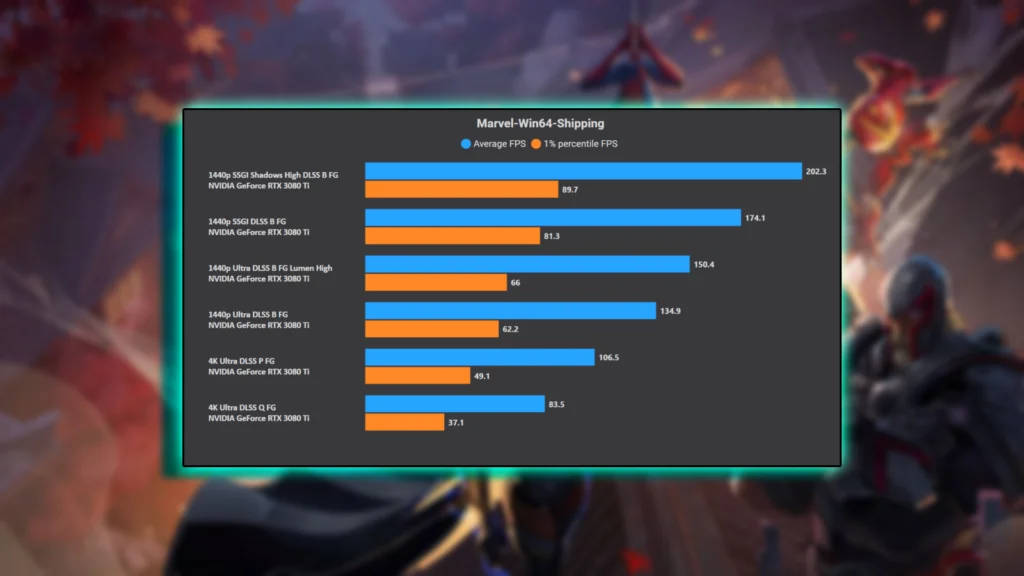
A mid-range system (like a GTX 1660 Super, RTX 2060, or RX 5600 XT paired with a modern 6-core CPU) can hit 60–144 FPS at 1080p or around 60–90 FPS at 1440p. Pick these options if you want a balanced blend of frames and graphics.
- Resolution: 1920×1080 for very high frame rates, or 1440p around 60–90 FPS. Upscale from 1080p to 1440p using DLSS/FSR on Quality if you need more performance.
- Display Mode: Fullscreen.
- Texture Quality: High. Most mid-tier GPUs have enough VRAM for crisp textures.
- Model Detail: Medium or High. Keep an eye on FPS in busy areas.
- Foliage Quality: Medium is a solid choice. High is okay if your rig can handle it.
- Shadow Detail: Low or Medium. Low ensures consistent high FPS; Medium looks nicer but can cost 10–20% performance.
- Global Illumination: SSGI Low for minimal impact. Lumen High can drop you under 60 FPS in many scenarios.
- Reflection Quality: Screen Space (On). This typically only reduces FPS by a small margin, while significantly improving reflections.
- Effects Detail: Low remains safest for stable FPS, but Medium might be okay if you rarely drop below your target frames.
- Post-Processing: Low or Medium, based on preference. Avoid High if you want maximum clarity.
- Anti-Aliasing: TAA or DLSS/FSR on Quality. DLSS or FSR might boost frames nicely without losing much visual fidelity.
- V-Sync: Off.
- Frame Limit: Off unless you prefer capping to your monitor’s refresh.
- Reflex Low Latency: On.
- Frame Generation: Off (mid-range cards usually don’t support it, and you might already have decent FPS).
Expect 60–100+ FPS at 1080p. If you want to push visuals, go slightly higher on certain options but always check performance in real matches before finalizing.
Best Settings for High-End PCs
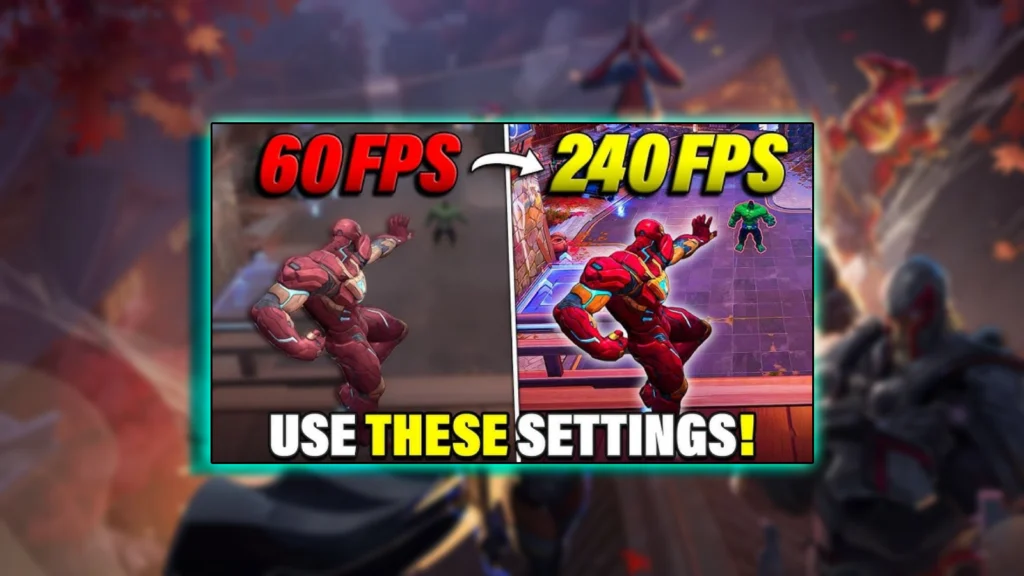
If you’re fortunate enough to own a high-end system (RTX 3080 or 4080, RX 6800 XT or 7900 XTX, plus a strong CPU), you can run Marvel Rivals at high refresh rates or high resolutions. Decide whether you want top-tier visual fidelity or extremely high frames for competitive advantage.
- Resolution: 1440p is the sweet spot for many high-end gamers. Expect 100+ FPS at mostly High/Ultra settings. If you have a 4K monitor, be prepared to see around 80–120 FPS on top hardware, especially with upscaling.
- Display Mode: Fullscreen.
- Graphics Quality: Custom or “Epic/Ultra” preset plus manual tweaks.
- Texture Quality: Ultra. No reason to hold back if you have plenty of VRAM.
- Model Detail & Foliage: High or Ultra. The performance cost is small on a beast GPU.
- Shadow Detail: Medium or High. You can push shadows to High for visuals, though Low is still favored by many for minimal FPS impact. Check how big the difference is.
- Global Illumination: SSGI Low or Medium for stable frames. Lumen High looks great but can drop your FPS from 144 to 100 or lower in bright maps. Use it only if you have extra headroom.
- Reflection Quality: Screen Space at High. If ray tracing is an option and you want maximum realism, try it, but be warned it’s demanding.
- Effects Detail: Medium. That’s enough eye-candy for most big fights, though Ultra can cause dips if multiple ultimates go off at once.
- Post-Processing: Medium or High. Just disable motion blur to stay competitive.
- Anti-Aliasing: TAA or DLSS/FSR on Quality. Upscaling often boosts frames above 144 on 1440p or 4K with minimal visual loss.
- V-Sync: Off, especially if you have G-Sync or FreeSync.
- Frame Limit: Off to let your system hit high refresh if you want 200+ FPS.
- Reflex Low Latency: On.
- Frame Generation: Optional. It can raise FPS by 30–70%, but may add latency or minor artifacts. Many turn it off if they already get high frames.
On strong hardware, you’ll likely stay above 144 FPS at 1440p with these settings. Push them higher if you prefer visual fidelity over raw performance.
Comparison Table: Performance vs. Quality

Use this table to see which settings hurt FPS the most. Tweak the demanding ones first if you need a boost.
| Setting | Visual Impact (Low vs High) | Performance Impact |
|---|---|---|
| Resolution | Low res = softer image; high res = sharper details. | Very High (Going from 1080p to 4K can halve FPS) |
| Texture Quality | Low = blurry; High = crisp textures if VRAM is sufficient. | Low (Assuming your GPU has enough VRAM) |
| Model/Foliage | Low = fewer details and draw distance; High = more objects. | Low/Moderate (Small drop on mid/high-end rigs) |
| Shadows | Low = minimal shadows; High = rich, realistic shadows. | Very High (Commonly lowers FPS severely) |
| Global Illum. | Low/Off = basic lighting; Lumen = advanced bounce lighting. | High (Lumen can heavily reduce FPS) |
| Reflections | Off = flat surfaces; SSR = realistic reflections. | Moderate (Some cost but worth the gain) |
| Effects Detail | Low = fewer particles; Ultra = dense explosions. | High (Can tank FPS during heavy combat) |
| Post-Process | Low = minimal filters; High = bloom, blur, etc. | Low/Moderate (Small drop, can affect clarity) |
| Anti-Aliasing | Off = jagged edges; TAA = smooth edges. | Low (Upscaling can boost FPS if used) |
| V-Sync | Off = possible tearing; On = no tearing but input lag. | N/A (No direct FPS change, but may add lag) |
| Reflex | Off = standard latency; On = reduced latency. | N/A (No FPS impact, better responsiveness) |
| Frame Gen | Off = normal rendering; On = AI inserts extra frames. | High (boost) (Can raise FPS by 30–70%, mild added lag) |
Tip: Shadows and GI are the biggest frame killers. Turn them down if you need more performance. Textures and model detail typically have a smaller impact, so you can leave them higher for improved visuals.
Step-by-Step Performance Optimization
Update Drivers and Windows
New drivers often contain game-specific optimizations. Keep your GPU drivers up to date, and regularly install Windows patches. That can fix crashes and improve stability in new titles.Enable an FPS Counter
Go to Settings > Display in Marvel Rivals and activate “Show FPS.” You can also use your graphics card software to track FPS. This live readout helps you see the impact of each change.Go Fullscreen at Native Resolution
Stick to your monitor’s native resolution unless your hardware can’t handle it. If you have a 4K display but a mid-range GPU, consider 1440p or 1080p for better FPS.Start with a Preset
Switch your Graphics Quality to Low or Medium initially. Play a quick match to see how your machine handles it. Note your average FPS and any stutters.Adjust Heavy Hitters First
- Shadows: Set to Low to gain a chunk of frames.
- Global Illumination: Use SSGI Low or Off instead of Lumen.
- Effects: Keep them Low if you see big dips in chaotic fights.
Fine-Tune the Rest
- Textures: Bump to High or Ultra if your GPU has enough VRAM.
- Model/Foliage: Medium or High, depending on performance headroom.
- Reflections: Try SSR on if you can spare a few frames.
- Post-Processing: Medium or Low; watch for motion blur.
- AA/Upscaling: Try TAA or DLSS/FSR on Quality if you want better performance at higher resolution.
Find Your Sweet Spot
Re-test in a match with lots of action. Check your 1% lows—does your framerate dip below a comfortable level? If it’s still good, you can raise a few more settings. If you see big drops, revert a setting or two.Optional Frame Cap
If you push way beyond your monitor’s refresh rate, capping at that number can reduce GPU load, though it’s not mandatory. Some prefer consistent frametimes.Save and Check After Updates
Confirm your settings are applied. Marvel Rivals patches might reset them, so keep an eye on any big game updates.Rinse and Repeat
As you switch hardware, or if the game changes, revisit your settings. Tweak them again if you notice performance shifts.
Additional Tweaks
- Resizable BAR (ReBAR): Enable it in your BIOS and driver if possible. It may yield a few extra frames on modern GPUs.
- Hardware-Accelerated GPU Scheduling (HAGS): Turn it on in Windows Graphics Settings (Win10/11). Gains can be small, but every bit helps.
- Windows Game Mode: Usually beneficial. It prioritizes the game process and limits background interference.
- Close Background Apps: Free your CPU and GPU from extra tasks, especially if you only have 8–12GB of RAM.
- High Performance Power Plan: Prevents throttling or downclocking. Also, set your GPU’s power management mode to “Prefer Maximum Performance.”
- Use an SSD: While it won’t improve raw FPS, loading times and texture streaming will be much faster.
- Disable Fullscreen Optimizations in Windows: Right-click MarvelRivals.exe and check “Disable fullscreen optimizations” if you suspect alt-tab or stutter problems.
- Antivirus Exceptions: Make sure your security software isn’t scanning game files mid-battle.
- Driver Control Panel Tweaks: Leave most at defaults, except consider Low Latency Mode (Ultra) if not using Reflex. Also enable G-Sync or FreeSync for smoother gameplay if your monitor supports it.
- Overclocking (Advanced): Slight CPU or GPU overclocks can help if you’re comfortable with that. Monitor temps carefully.
- Config File Edits (Advanced): Some players edit Engine.ini to disable extra post-processing or reverb. Always back up files before experimenting to avoid accidental glitches.
Community Insights
Marvel Rivals players consistently mention a few tips that can help anyone:
- Shadows on Low: This setting alone raises FPS more than almost anything else. Many high-end users still keep it Low to exceed 200 FPS in big matches.
- Competitive Advantage at Low Settings: Lower effects can help you see opponents more clearly. Shiny explosions and heavy bloom may distract you.
- Upscaling for Extra Frames: DLSS or FSR can boost performance on mid-range or high-end cards. Even Balanced modes look decent and let you stay above your target FPS.
- CPU Bottleneck at Very High FPS: Several players discovered the game can become CPU-limited in 20-player fights. A better CPU helps maintain stable performance if you’re aiming for 200+ FPS.
- NVIDIA Reflex: Enabling it lowers input latency, making the game feel snappier.
- Future Patches: The dev team might optimize or add new settings. Keep an eye on community discussions, as recommended configurations may change over time.

Conclusion
Marvel Rivals is surprisingly adaptable to various PC setups, from older builds pushing for a stable 60 FPS to top-tier rigs gunning for 240+ FPS. By focusing on the most demanding settings—shadows, global illumination, and effects—you can claim large performance gains without sacrificing too much visual flair.
Texture Quality, Model Detail, and Foliage rarely hit frames too hard. Turning them up gives the world and characters a polished feel. If you’re a serious competitor, consider lower visuals for clarity and response speed. More casual players might bump up GI or advanced reflections to enjoy the vibrant art style.
Try these guidelines, experiment a bit, and watch your Marvel Rivals experience transform into something smoother and more responsive. With the right tweaks, you’ll be well on your way to conquering each match in style. Good luck and have fun!